
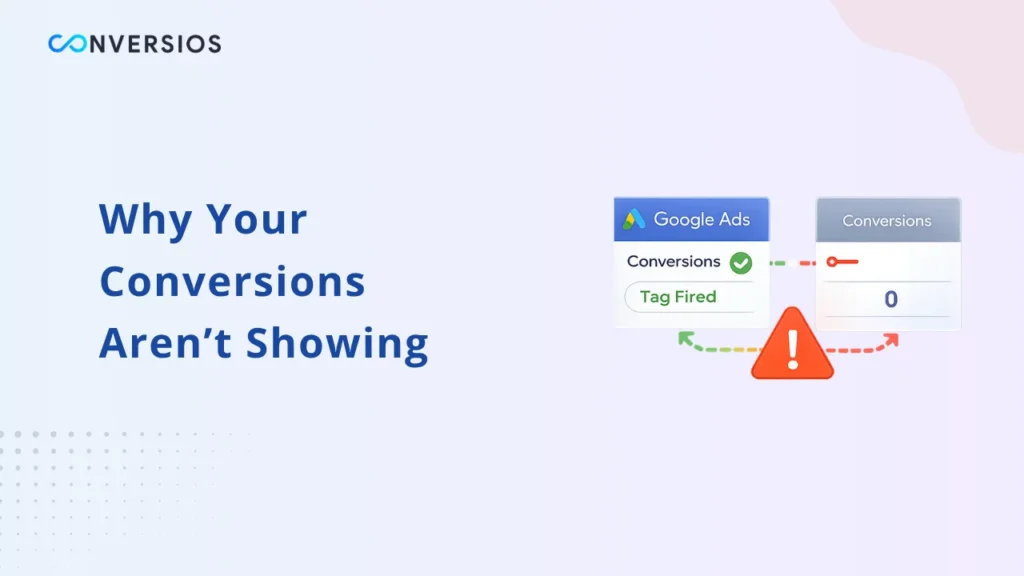
A Google Ads conversion tag can fire in Google Tag Manager (GTM) and produce zero conversions in Google Ads. This happens because a tag firing and a conversion being recorded are two separate events. GTM confirms that the tag sent a request to Google’s servers. Google Ads then checks whether that request meets its validation rules. If the Conversion ID is wrong, the Conversion Label does not match, or the attribution link to an ad click is missing, Google silently rejects the hit and records nothing.
This guide explains why this rejection can occur and provides a step-by-step process to identify and fix the exact cause in your store.
What “Tag Fired” Actually Means in GTM
When GTM shows a tag as “fired,” it means GTM sent an HTTP request to Google’s servers. It does not mean Google Ads received, validated, or recorded a conversion.
The request contains the Conversion ID, Conversion Label, and any parameters set in the tag. Google’s servers receive the request and run it through a set of validation checks. If any check fails, Google drops the request silently. No error appears in GTM. No alert appears in Google Ads. The conversion count stays at zero.
This distinction is the reason most debugging attempts fail. Store owners confirm the tag fired in GTM and stop investigating there. The actual failure is happening on Google’s side, one step further down the chain.
Key takeaway: GTM showing “Tags Fired” is only confirmation that a request was sent. What matters is whether Google Ads accepted and matched that request.
What Google Ads Needs to Record a Conversion
Google Ads requires two conditions to be met before it records a conversion.
Condition 1: A valid conversion action match. The Conversion ID and Conversion Label in the GTM tag must exactly match an active conversion action in the Google Ads account. If the ID is outdated, the Label has a typo, or the conversion action has been paused or deleted, Google rejects the hit.
Condition 2: An attribution match. Google Ads must be able to link the conversion back to an ad click. This link is made using a GCLID (Google Click Identifier), which is a unique identifier appended to the landing page URL when a user clicks a Google Ad. Google stores the GCLID in the user’s browser as a cookie. When the conversion tag fires, it reads that cookie and sends the GCLID back to Google Ads. If the GCLID is missing, Google receives the conversion data but cannot attribute it to any campaign, ad group, or keyword.
Note: GCLID loss caused by Safari’s Intelligent Tracking Prevention, iOS cookie restrictions, or payment gateway redirects is covered in detail in two separate guides: Google Ads GCLID Loss in Safari and How to Fix Safari GCLID Removal. The causes below focus on configuration problems that are unrelated to GCLID and are often overlooked.
Cause 1: The GTM Trigger Is Firing on the Wrong Page
The GTM trigger controls when a tag fires. If the trigger is misconfigured, the conversion tag fires on the wrong page, at the wrong time, or on every page. GTM Preview will still show the tag as “fired” because the tag did fire, just not in the right context.
Why this is harder to catch than it looks
GTM Preview shows all tag fires across the entire browsing session. If the conversion tag fires on the cart page or a checkout confirmation step, it appears in the “Tags Fired” list. The store owner sees the tag as fired and assumes the tracking is working. The actual Thank You page may never trigger the tag at all.
Common trigger mistakes on Shopify and WooCommerce
On Shopify, the correct trigger condition is: Page URL contains /thank_you (with an underscore, not a hyphen). Using /thank-you with a hyphen is a frequent error that prevents the trigger from matching the correct page.
On WooCommerce, the correct trigger condition is: Page URL contains order-received.
A regex trigger set to /thank-you can also accidentally match unrelated pages such as /pages/thank-you-for-subscribing, causing the tag to fire in the wrong context.
How to verify the trigger is correct
Open GTM in Preview mode. Complete a real test purchase from start to finish: add a product to the cart, go through checkout, complete payment, and land on the Thank You or Order Confirmation page. In the GTM Preview panel, click on the Thank You page entry. Look at “Tags Fired” for that specific page event only. The Google Ads conversion tag must appear there and only there. Click the tag and confirm the trigger condition matches the exact URL of the Thank You page.
Cause 2: Conversion ID or Conversion Label Mismatch
Every Google Ads conversion action is identified by two values: a Conversion ID and a Conversion Label. The Conversion ID is the account-level identifier, formatted as AW-XXXXXXXXX. The Conversion Label is a unique string assigned to each individual conversion action, such as AbC1dEfGhI.
Both values must be present and exactly correct in the GTM tag. If either value is wrong, Google receives the request but cannot match it to any conversion action in the account. The hit is rejected without any error notification.
Three common ways a mismatch happens
Outdated Conversion ID or Label. If the Google Ads account has been rebuilt, if a new conversion action was created to replace an old one, or if the account was linked to a different Google Ads account, the values in GTM may no longer match anything active in Google Ads.
Case sensitivity errors. Conversion Labels are case-sensitive. AbC1dEfGhI and abc1defghi are treated as different values. A single letter in the wrong case causes a silent mismatch.
GTM variable returning null or an old value. If the Conversion ID is passed through a GTM variable (for example, to handle multiple ad accounts or environments), a misconfigured variable can silently pass an empty value or an outdated ID without triggering any GTM error.
How to verify the Conversion ID and Label
In Google Ads, go to Goals, then Conversions, then Summary. Select the Purchase conversion action. Click Tag Setup. The exact Conversion ID and Label are displayed there. Compare these character by character against the values in the GTM tag. A step-by-step walkthrough of how to find these values is available here: How to Find Your Google Ads Conversion ID and Label.
Cause 3: The transaction_id Parameter Is Missing
The transaction_id parameter is the order number sent with each conversion hit. Google Ads uses this value to deduplicate conversions. If the same Thank You page loads more than once (because the user refreshes the page, navigates back, or a redirect causes the page to load twice), Google counts each tag fire as a separate conversion unless a unique transaction_id is present.
Why this causes a tracking breakdown
When transaction_id is missing, conversion counts become inflated. One order may appear as two or three conversions in Google Ads. This inflation looks like a tracking error, and store owners often investigate by resetting or rebuilding the tag. That reset removes the original tag configuration and introduces new gaps, making the problem worse.
Passing transaction_id also protects tracking accuracy when server-side and client-side tags are both active, because it allows Google to deduplicate hits arriving from two sources for the same order.
How to verify the transaction_id parameter
In GTM, open the Google Ads conversion tag. Check the tag parameters. There should be a transaction_id field. For Shopify, this is mapped to the {{ Order ID }} variable. For WooCommerce, this is mapped to {{ order_number }}.
Open GTM Preview on the Thank You page after completing a test purchase. Click on the conversion tag in the Preview panel. Confirm the transaction_id field is populated with a real order number, not undefined, not empty, and not the literal text {{ Order ID }} (which means the variable did not resolve).
Cause 4: The Tag Is Firing Inside an iframe
An iframe is an HTML element that embeds one webpage inside another. Some custom checkout configurations load the order confirmation or Thank You page content inside an iframe rather than as a standalone page. This is common with certain WooCommerce checkout plugins, including FunnelKit, CartFlows, and WooFunnels. It also occurs with some embedded payment forms and headless storefront implementations.
GTM does not track inside iframes by default. GTM runs in the context of the parent page, not inside the embedded iframe. When the order confirmation content loads inside the iframe, GTM does not detect that page load. The conversion tag fires relative to the parent page, which is not the order confirmation context. The result is that the tag fires at the wrong time, with incorrect data, or without a valid order context for Google to process.
How to check for iframe-based Thank You pages
Open the Thank You page in a browser after completing a test order. Right-click on the order confirmation content and select Inspect (in Chrome). Look at the Elements panel. If the order confirmation content is wrapped in an <iframe> HTML tag, the Thank You page is loading inside a frame.
The fix options are: adding the GTM conversion tag directly inside the iframe’s own GTM container, implementing a postMessage JavaScript bridge between the iframe and the parent page, or switching to server-side conversion tracking, which sends the conversion from the server and bypasses the browser context entirely.
Cause 5: Duplicate Conversion Actions Are Distorting the Data
A duplicate conversion action situation occurs when two separate sources in Google Ads are both tracking the same purchase event. The most common version of this is having both a website-based Google Ads conversion tag (set up via GTM) and a GA4-imported conversion action (imported from Google Analytics 4 into Google Ads) both active for the same Purchase event.
This does not cause zero conversions. It causes inflated conversions, which can be just as damaging to campaign performance because Smart Bidding algorithms use the conversion data to make bidding decisions. Inflated conversion counts cause the algorithm to overbid.
The secondary problem is diagnostic. When a store owner is investigating why conversions look wrong, inflated totals from duplicates mask real tracking gaps. The overall conversion number may look reasonable, hiding the fact that a significant portion of real orders are not being tracked at all.
How to identify and fix duplicate conversion actions
In Google Ads, go to Goals, then Conversions, then Summary. Look at the Source column. If you see two purchase-type conversion actions, one with Source listed as “Website” and one with Source listed as “Google Analytics 4,” and both are set to “Include in Conversions,” you have a duplication problem.
Choose one source as the primary. Set the other conversion action to “Don’t include in Conversions” using the settings menu. Do not delete it, because deleting removes the historical conversion data associated with past campaigns.
How to Use Google Ads Conversion Diagnostics
Google Ads Conversion Diagnostics is a built-in tool that shows the status of recent conversion tag hits, including whether Google accepted them, is still processing them, or rejected them. Most store owners debug only in GTM and never open this tool.
What the Diagnostics tool shows
Recent activity: A log of recent conversion tag requests received by Google and whether they were matched to conversions.
Unverified: The tag has not fired in a way Google can detect. This usually means the tag has never been set up or has not fired recently.
Tag inactive: The tag has fired before but not within the recent verification window.
No recent conversions: Google is receiving hits from the tag but the hits are not matching to ad clicks. This status confirms the tag and validation are working, but the attribution chain is broken. The cause is almost always a missing GCLID due to cookie restrictions or a payment redirect.
How to access the Diagnostics tool
In Google Ads, go to Goals, then Conversions, then Summary. Click the name of the Purchase conversion action. Click Diagnostics in the left panel. Review the status shown and any reason codes listed below it.
This tool should be the first place checked after GTM Preview. It tells you what Google actually did with the request, which GTM cannot show you.
Step-by-Step Diagnosis Checklist
Use this checklist in order. Most issues are identified by step 3 or 4.
Step 1: Check GTM Preview on the correct page. Complete a test purchase. Confirm the Google Ads conversion tag appears under “Tags Fired” on the Thank You or Order Confirmation page. Confirm it does not appear on checkout steps, cart pages, or all pages.
Step 2: Check Google Ads Conversion Diagnostics. In Google Ads, go to Goals, then Conversions, then select the Purchase conversion, then Diagnostics. Note the current status and any reason codes.
Step 3: Verify the Conversion ID and Conversion Label. Open the GTM tag and find the Conversion ID and Conversion Label values. Compare each character against the values shown in Google Ads under Goals, Conversions, Summary, Tag Setup. Check for case differences, extra spaces, or outdated values.
Step 4: Confirm the transaction_id parameter is populated. In GTM Preview on the Thank You page, click the conversion tag and confirm the transaction_id field shows a real order number.
Step 5: Check whether the Thank You page is inside an iframe. Inspect the page in Chrome DevTools. If the order confirmation content is wrapped in an <iframe> element, GTM is not tracking inside it correctly.
Step 6: Check for duplicate conversion actions. In Google Ads Conversions Summary, confirm you do not have both a Website and a GA4 source tracking the same Purchase event with both set to “Include in Conversions.”
Step 7: Compare total order volume to Google Ads conversions. Over a 30-day period, compare the number of completed orders in Shopify or WooCommerce to the number of conversions recorded in Google Ads. A gap larger than 15 to 20 percent (after accounting for orders from organic, direct, and email traffic) indicates an attribution gap, most likely GCLID-related. See the Google Ads GCLID Loss guide for that specific fix.
The Fix for the Structural Attribution Gap
The configuration fixes above resolve tag-level problems. There is a separate structural gap that no GTM configuration can fix: the GCLID cookie being deleted by browser restrictions or stripped by payment gateway redirects before the purchase is completed.
Server-side conversion tracking addresses this gap. With server-side tracking, the order confirmation triggers a conversion event sent directly from the web server to Google’s API. This process does not rely on the user’s browser, cookies, or the GCLID being present at the time of purchase. The conversion is matched using hashed first-party data such as the customer’s email address or phone number.
A detailed comparison of client-side and server-side tracking approaches is available here: Server-Side Tagging vs Client-Side Tagging. Instructions for validating an existing server-side setup are here: How to Validate Server-Side GTM.
For Shopify stores, the Conversios Server-Side Tracking app automates this setup. It includes a recovery dashboard that shows the gap between completed orders and conversions recorded in Google Ads.
If you are seeing the same issue on Meta (Meta Pixel fires but no conversions are recorded in Meta Ads Manager), the cause and fix follow the same pattern. That is covered here: Meta Pixel Shows Fired But No Conversions.
Frequently Asked Questions
Q. Why does my Google Ads conversion tag fire in GTM but no conversions show up in Google Ads?
A Google Ads conversion tag firing in GTM means GTM sent a request to Google’s servers. It does not mean Google recorded a conversion. Google Ads requires two things to count a conversion: a valid Conversion ID and Label match, and an attribution link to an ad click (usually via a GCLID cookie). If either is missing, Google receives the request and silently drops it. No error is shown in GTM or Google Ads.
Q. How do I check whether Google Ads is actually accepting my conversion hits?
Open Google Ads and go to Goals, then Conversions, then Summary. Click the Purchase conversion action. Click Diagnostics in the left panel. This tool shows the status of recent conversion tag hits, including whether they were accepted or rejected and the reason for rejection. This is different from GTM Preview, which only shows that a request was sent, not whether Google accepted it.
Q. What is a transaction_id in a Google Ads conversion tag and why does it matter?
The transaction_id is the order number sent as a parameter with each conversion hit. Google Ads uses this value to deduplicate conversions. If the same Thank You page loads more than once (due to a page refresh or redirect), the conversion tag fires multiple times. Without a unique transaction_id, each fire is counted as a new conversion. With transaction_id present, Google only records one conversion per unique order number regardless of how many times the tag fires.
Q. Can the Google Ads conversion tag fire correctly in GTM and still not be tracked?
Yes. GTM Preview confirms the tag fired and sent a request to Google. It does not confirm Google accepted the request. The request can be rejected if the Conversion ID or Label is wrong, if there is no GCLID in the user’s session, if the conversion action in Google Ads is paused or deleted, or if the Thank You page is loading inside an iframe that GTM is not tracking inside.
Q. What is the difference between “Unverified” and “No recent conversions” in Google Ads Diagnostics?
“Unverified” means Google has not received any conversion hits from the tag recently. The tag may never have been set up, or it may have stopped firing. “No recent conversions” means Google is receiving hits from the tag but the hits are not matching to ad clicks. The second status confirms the tag is technically working, but the attribution chain between the ad click and the conversion is broken, usually due to a missing GCLID.
Q. Does server-side tracking fix a Google Ads conversion tag that fires but records nothing?
Server-side tracking fixes the structural attribution gap caused by missing GCLIDs. This covers conversions lost because browser cookie restrictions deleted the GCLID, or because a payment gateway redirect broke the session before the purchase was completed. Server-side tracking does not fix configuration problems such as a wrong Conversion ID, a misconfigured GTM trigger, or a missing transaction_id. Both the configuration problems and the structural gap need to be addressed separately.
Q. What causes Google Ads to show inflated conversions instead of zero conversions?
Inflated conversions are usually caused by one of two things. First, a missing transaction_id parameter, which allows multiple tag fires for the same order to be counted as separate conversions. Second, duplicate conversion actions, where both a website-based GTM tag and a GA4-imported conversion action are both set to “Include in Conversions” for the same Purchase event. Both inflate the conversion count, making it harder to identify real tracking gaps.