
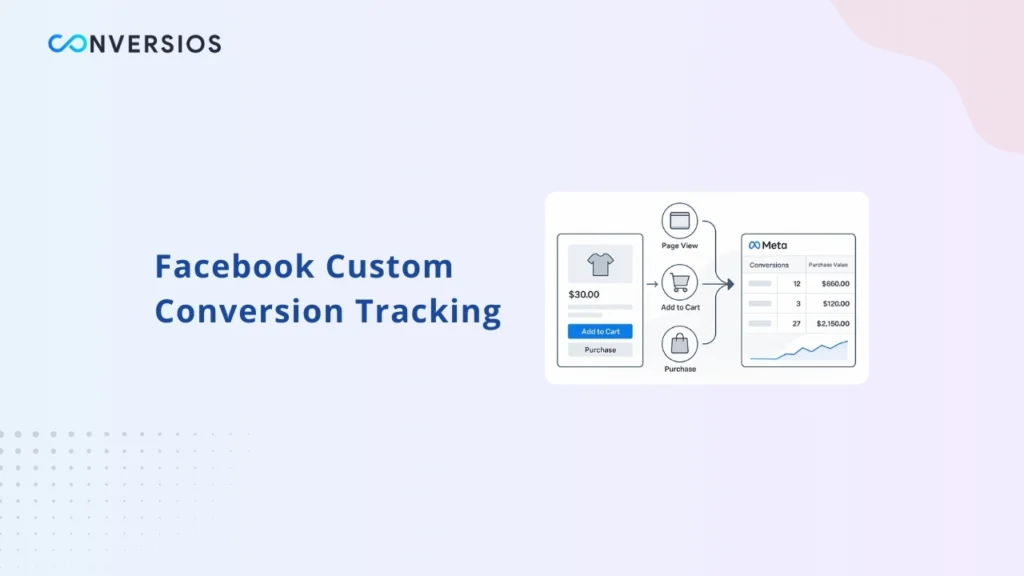
Most advertisers set up Facebook Custom Conversions once… then never touch them again.
Big mistake.
Quick terms before we start:
- Pixel = tracking code on your site
- Events = actions like “Add to Cart” or “Purchase”
- CAPI = backup tracking when pixels get blocked
Custom Conversions are just rules that filter your ad data to show what actually leads to sales – not vanity clicks.
This guide shows you exactly how to set them up right.
What Is a Facebook Custom Conversion
A Facebook Custom Conversion is a conversion you define using rules.
Instead of tracking every PageView or Purchase the same way, you can narrow those events down using conditions like URL paths, values, or event parameters.
Think of it as a filter.
You take an existing event and decide which versions of that event are meaningful enough to count as a conversion.
For example:
- Only count purchases above a certain value
- Track visits to a thank you page instead of all PageViews
- Measure users who reach a pricing or checkout step
This extra layer of control is what makes Custom Conversions useful.
Why Custom Conversions Matter More Than Ever
Tracking has become less reliable over the last few years.
Ad blockers, browser restrictions, and privacy updates mean that not every event reaches Meta the way it used to. When you rely only on broad standard events, the data often looks cleaner than it actually is.
Learn more about bypassing ad blockers with server-side tracking
Custom Conversions help you focus on intent, not volume.
They allow you to separate real buying signals from noise.
How Facebook Custom Conversions Work
Custom Conversions do not fire on their own.
They are calculated when an underlying event that matches your rules is received, not via separate pixel code.
Depending on how you configure the Custom Conversion, Meta evaluates either the event’s parameters (like value or content_id) or the page URL to decide whether it qualifies as a conversion.
They depend on events that already exist, such as PageView, ViewContent, AddToCart, or Purchase. Meta checks those incoming events and applies your rules to decide whether a conversion should be counted.
If the rules match, the conversion is recorded.
If not, it is ignored.
This is why accuracy depends heavily on how your events are implemented in the first place.
How to Create a Facebook Custom Conversion
The setup itself is simple. The thinking behind it matters more.
Step 1: Open Events Manager
Go to Meta Events Manager and choose the Pixel or Conversion API data source you want to use.
Learn how to set up Facebook CAPI for WooCommerce if needed.
If you are using both browser and server-side events, make sure they are already working correctly before creating Custom Conversions.
Step 2: Choose the Base Event
Select the event you want to build on. This could be:
- PageView
- ViewContent
- AddToCart
- Purchase
Avoid using All URL Traffic by default if you already have clean events. Use it when you specifically want URL‑only rules or have no dedicated event firing
Step 3: Add Rules
This is where most setups go wrong.
Add only the rules you actually need. Common examples include:
- URL contains /thank-you
- Value greater than a specific amount
- content_id equals a product or plan
- Prefer “URL contains” over “URL equals” unless the URL is truly static, because parameters, protocol changes, or trailing slashes can break exact matches and your conversion won’t be counted.
The more conditions you add, the more precise the conversion becomes.
Step 4: Assign a Conversion Category
Choose the category that best represents the action, such as Purchase or Lead.
This helps Meta understand how the conversion should be used for optimization.
Standard Events vs Custom Conversions
Standard events and Custom Conversions serve different purposes.
Standard events are broad and consistent. They are required for most optimization strategies and should always be implemented correctly.
Custom Conversions add context.They help you answer questions like:
- Which purchases are actually profitable?
- Which sign-ups come from high-intent traffic?
- Which landing pages signal real interest?
You can also optimize directly for a Custom Conversion at ad set level, but performance still depends on the underlying standard/custom events feeding it
A healthy tracking setup uses both.
Common Problems With Facebook Custom Conversions
The Conversion Never Fires
This usually means the rule does not match the event being sent.
Check whether the parameter or URL condition actually exists in live traffic.
Test in Events Manager’s Diagnostics / Custom Conversions tab by triggering the event and confirming that the rule conditions (URL/parameters) are present in real traffic
Conversions Appear in Events Manager but Not in Ads Manager
In most cases, the Custom Conversion was not selected at the ad set level or is assigned to the wrong ad account.
Differences in attribution windows and reporting views between Events Manager and Ads Manager can also make numbers look mismatched
Duplicate Conversions
If you use both browser and server-side tracking, deduplication must be configured using event_id.
Without deduplication Meta may treat browser and server versions of the same event as two separate events. Deduplication uses both event_name and event_id sent to the same pixel within a time window.
See our Facebook event deduplication guide for setup steps.
Why Server Side Tracking Makes a Difference
Browser-based tracking alone is unreliable.
Events can be blocked, delayed, or dropped entirely before reaching Meta. This affects Custom Conversions because they rely on clean event data.
Server-side tracking sends events directly from your server to Meta, reducing data loss and improving match quality.
Before: Browser-only tracking often misses high-value conversions.
After: Browser and server-side tracking together provide more stable data with server side tracking
Best Practices for Using Facebook Custom Conversions
Do not create Custom Conversions for everything.
Focus on actions that clearly indicate intent or revenue. Good examples include:
- Completed purchases
- High-value orders
- Reaching the payment or confirmation step
- Qualified lead submissions
Periodically prune or edit unused custom conversions so you stay within the 100‑per‑account limit and keep reporting clean
Keep your rules simple, test regularly in Events Manager, and revisit conversions as your funnel evolves.
Use tools like Meta Pixel Helper to validate
Custom Conversions work best when they are selective, not when they try to capture every click.
Final Takeaway
Facebook Custom Conversions are not a replacement for standard events.
They are a layer of clarity.
When combined with clean tracking, proper deduplication, and server-side data, they help you understand what actually drives performance instead of what simply inflates reports.
If you care about intent, accuracy, and scalable Meta Ads performance, Custom Conversions should be part of your tracking strategy.
Frequently Asked Questions
Q. What is a Facebook Custom Conversion?
A Facebook Custom Conversion is a rule-based conversion that filters existing Meta events to track specific actions.
Q. How many Custom Conversions can I create?
Each ad account can create up to 100 Custom Conversions.
Q. Why is my Custom Conversion not showing data?
Most issues are caused by rule mismatches, missing parameters, attribution settings, or tracking gaps. New Custom Conversions may take some time and volume before becoming eligible and stable for optimization. Or check our pixel fires but no conversions fix guide
Q. Are Custom Conversions required for Meta Ads?
No, but they are extremely useful when standard events are too broad to reflect real intent.